Preamble
If you’re reading this, I have most likely already given a Ten Talk presentation at WLPC US 2026 in Phoenix, Arizona. With only ten minutes to present, the information I shared was limited. This blog is meant to provide more details on how we resolved this issue.
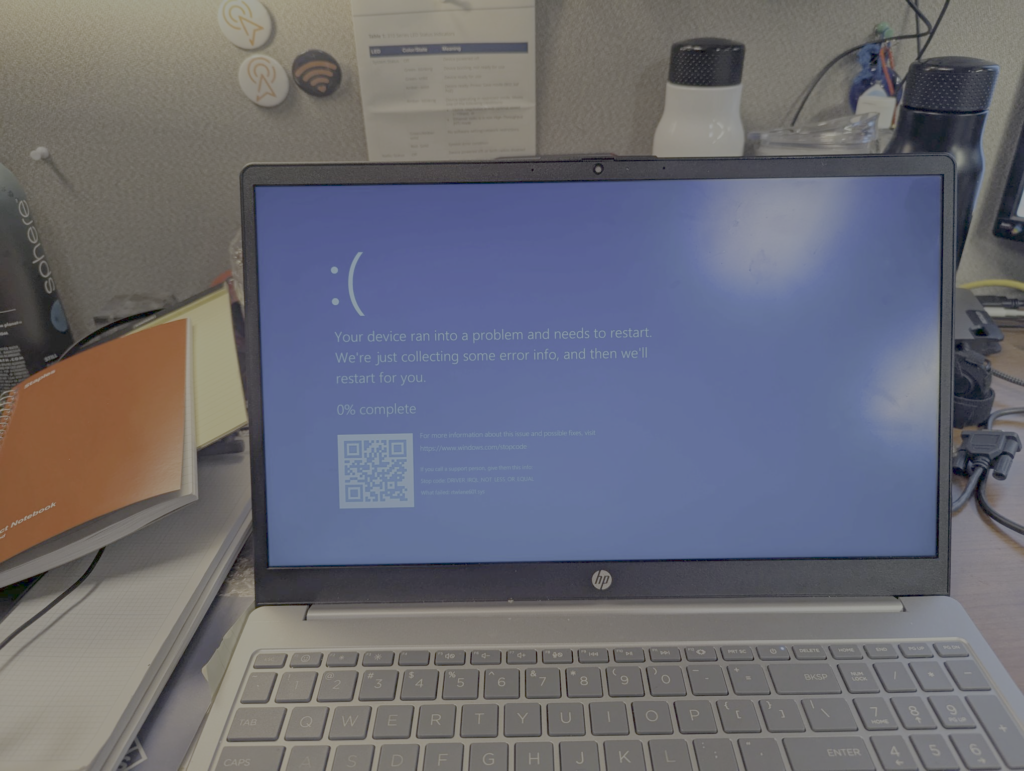
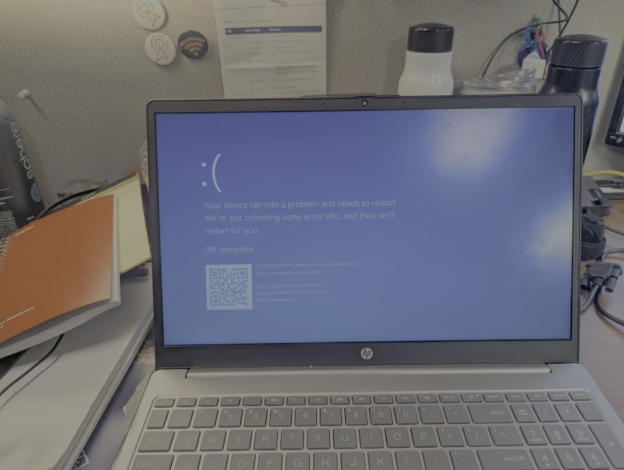
What would you do if you found out your Wi-Fi was essentially denial of servicing certain clients by causing them to crash? What if I told you this only impacted about 50 users total, approximately 0.001% of your client population? Would it change your level of concern or the amount of energy that you spent trying to solve this problem? Or would you tell those very few individuals to go away and get a new device? For me, every user’s experience matters and this is why I went through the process described in this blog to identify and resolve the issue (Windows laptops BSOD’ing) that was brought to me.
Background
Before I started working for Emory in October 2024, they deployed Passpoint during the summer (early August) across the existing Aruba deployment. Around that same time, Emory also entered into a POC with Juniper Mist and deployed their solution in 3 locations: 1 academic, 1 healthcare, and 1 where our IT staff worked. This will be an important detail later on, so just file it away for now.
Something else to keep in mind is that when I was made aware of the problem (January 2025), I didn’t know that the Passpoint SSID was just “recently” deployed. With Passpoint already being around for several years, I made a flawed assumption that it had been deployed for a while, just like our other SSIDs. With that flawed assumption in mind, I started my troubleshooting “from scratch” to attempt to solve this mystery.

Data collection
What does any good IT professional do immediately after being brought a problem that they have to solve? I’ll tell you… They start asking questions to gain as much information about the problem as possible. And that’s exactly what I did. Based on my initial set of questions, which again was based on my flawed assumption above, here’s the meaningful data that I was able to obtain:
- Only impacted devices running Windows 11
- Affected both Dell Inspiron 14 7445 and HP Envy x360 laptops
- Primarily seen with Realtek Wi-Fi adapters
- Occurred when attempting to connect to EmoryUnplugged, our university-branded SSID which is WPA2-Enterprise and 802.11r enabled
- Issue began after an EAP-TLS change was performed over the summer
- The problem didn’t occur at any other locations except for on campus
Not a lot to go on, but a good start. I followed up with more questions to try and dive deeper to identify any correlations that could help hone in on potential causes. I also asked for WLAN reports from any of the affected devices, something that was not asked for previously. Here’s what I learned from the second round of questions and the WLAN reports:
- The problem was previously looked into by our team and thought to be resolved back in August 2024 by rolling back the Wi-Fi NIC’s drivers, but it returned after new Windows updates were installed
- Uninstalling and reinstalling of the drivers didn’t help
- Disabling power management for the Wi-Fi adapter didn’t help
- Installing BIOS/UEFI updates didn’t help.
- Using external USB-based Wi-Fi adapters purchased by the students themselves seemed to fix the issue
Now we’re getting somewhere. The issue seems to be related to drivers and what type of Wi-Fi adapter was being used. From the 2 WLAN reports I received, the most meaningful data I was able to pull from them was that both laptops, one a Dell and the other an HP were both using the Realtek RTL8852CE Wi-Fi 6E PCI-E NIC. They were both using different driver versions, but I did note them down as data points. On the Dell laptop, I didn’t see any connection attempts in the logs to the EmoryUnplugged SSID and in fact, there wasn’t even a profile saved for it. Someone likely had configured the laptop to forget it as a part of their troubleshooting. But this hinted that it was not strictly related to EmoryUnplugged as was reported. On the HP’s report, the connection attempts didn’t appear to get far enough to actually attempt to connect. I didn’t see a username provided in the identity information during the connection attempts which seemed odd, but was ultimately just another data point.
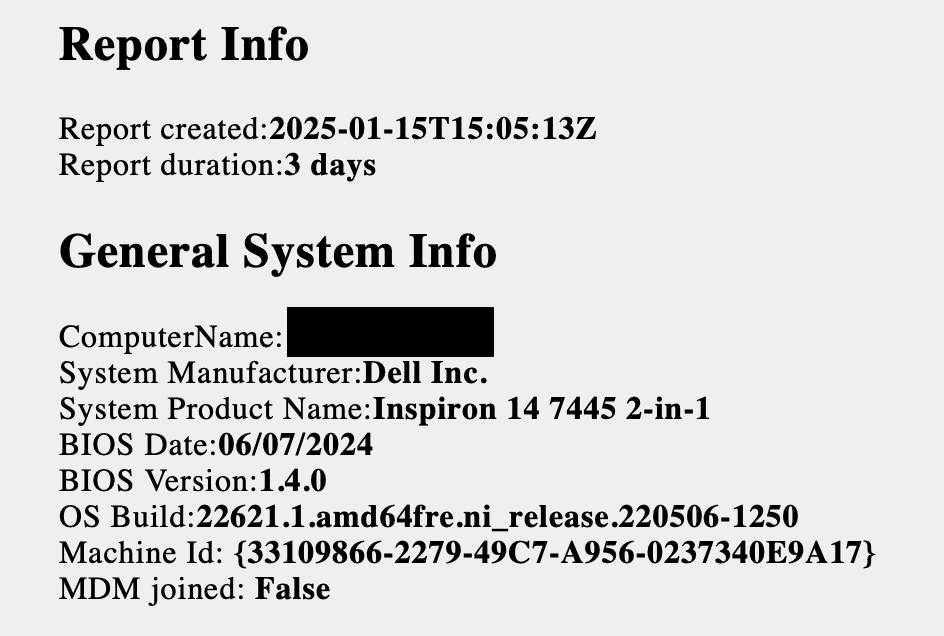

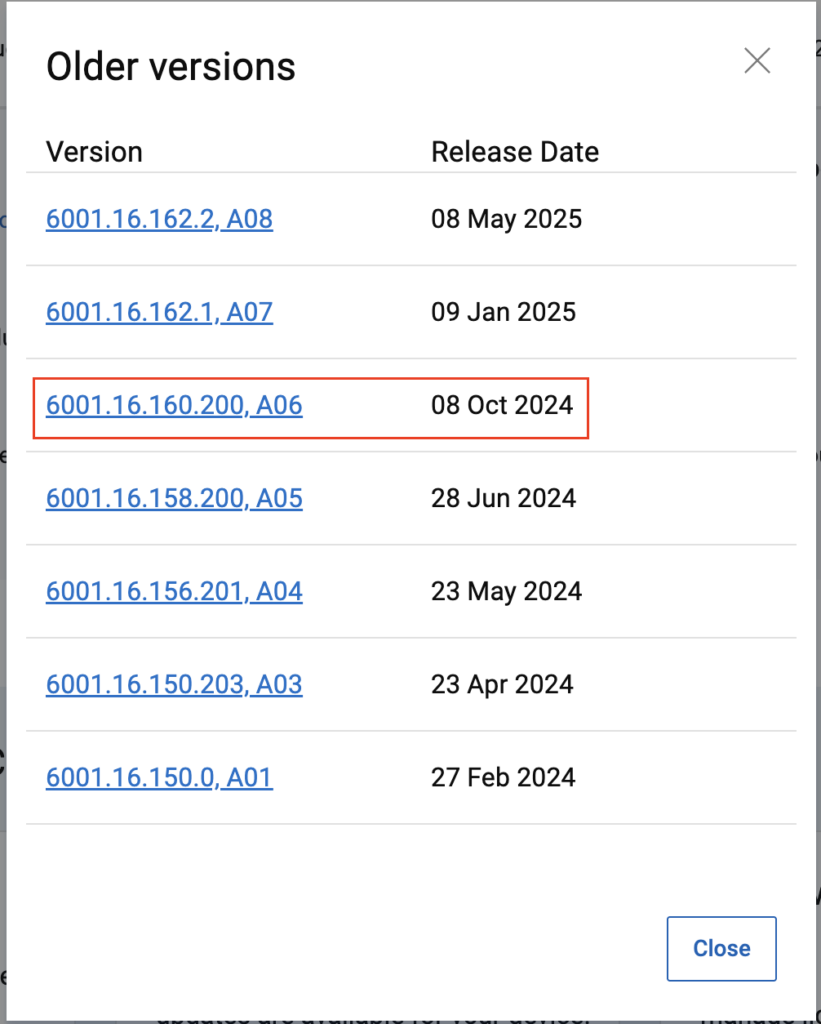
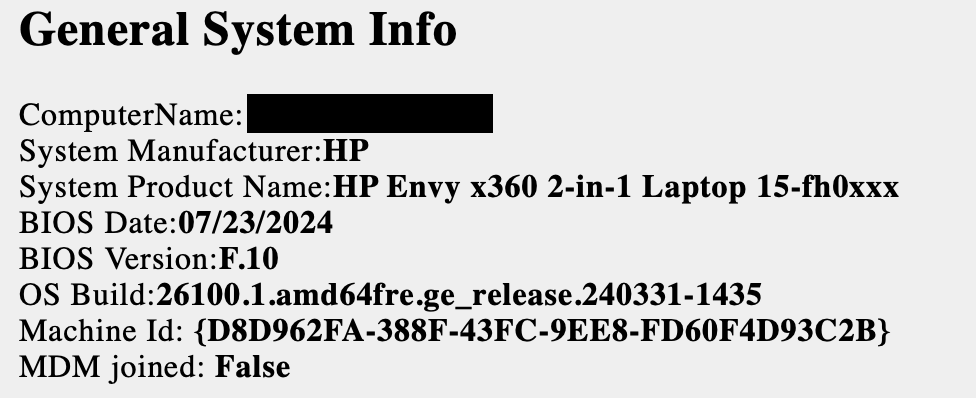

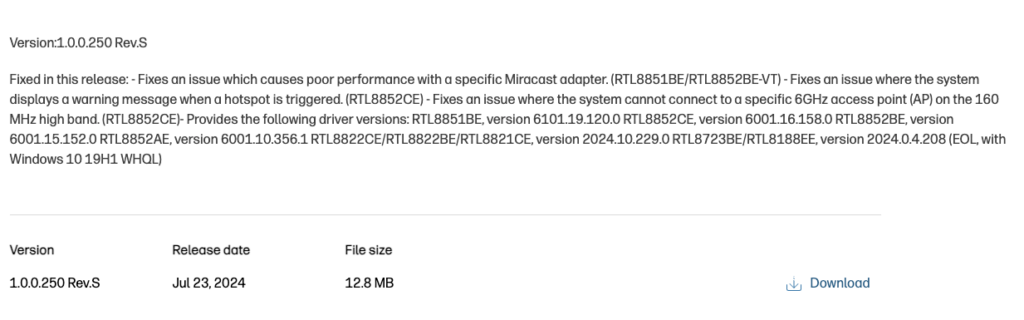
The drivers on the HP laptop were from November 2023 so with newer drivers being available (July 2024), I asked them to update to see if that helped. The Dell driver was fairly recent as you can see above so there wasn’t a driver at the time that I could recommend updating to. As another note, right around this time (December 2025), 6001.16.162 was made available in the Microsoft Update Catalog, but hadn’t yet made it to the OEMs’ driver pages and this would be significant later on…
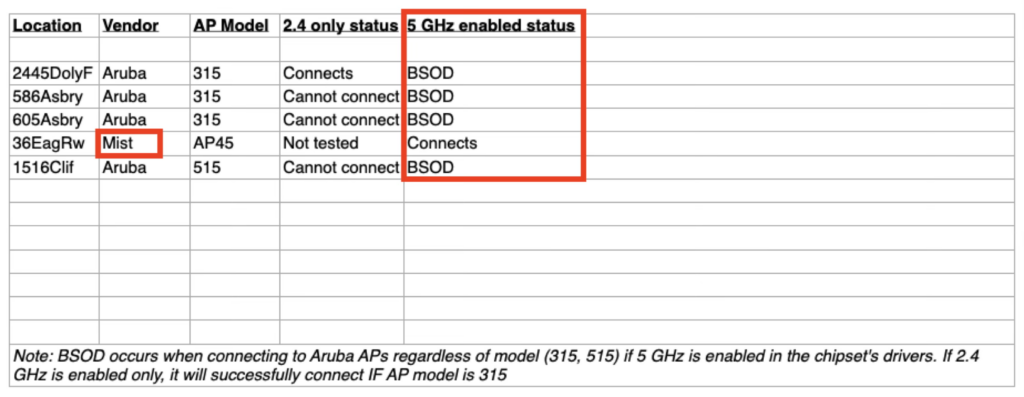
Through our continued communication and troubleshooting with our contact, we also found that the issue seemed to only occur when the 5 GHz radio was enabled on the NIC. We found this out by asking them to take a problematic laptop to a number of buildings to see if it would experience a blue screen in all of them. The buildings had various AP models of various generations of Wi-Fi and in one case, a completely different vendor. We also asked them to disable one of the radios (2.4 / 5) at a time to see if that would change anything and that’s when we discovered it was directly related to 5 GHz.
On-site testing
Let’s fast forward a little to the end of January when I was planning on making a visit to the campus. (I’m a remote worker and I do not live in the metro Atlanta area so I have to schedule and coordinate visits to campus.) One of the things I wanted to look at while visiting the campus was this BSOD issue. I asked our contact to hold onto one of the problematic devices for my visit and they obliged. When we arrived on site, we did some basic testing and were able to recreate the issue. The university building we were in was an Aruba building. Knowing that they didn’t seem to have issues at the lone Mist site they tested in, the Psychology building, I called for a field trip. What we found at the Psychology building was pivotal in identifying the issue. We could not recreate the issue in that building when just the Mist APs were online and broadcasting the same exact*** SSIDs.
My inclination was that it had something to do with one of our WPA2-Enterprise SSIDs, especially with the comment that the problem didn’t occur off campus. As you know, most homes and customer-facing businesses (think Starbucks as an example) run SSIDs as Open or with a passphrase. So we removed EmoryGuest from the equation which was our only open or passphrase-based SSID. My next hypothesis was that it could be related to 802.11r or Passpoint. 802.11r has often caused problems with clients that don’t support it so in my mind it was definitely a suspect and since Passpoint is unique in that it has additional information elements in the beacons and probe responses, it was also a suspect. For the EmoryUnplugged SSID, 802.11r was enabled on both vendors so this ruled out .11r in my mind.
While still at the Psychology building, we decided to take a spare Aruba AP and set it up with our production configuration to see if the problem followed. It did! We had just made another major breakthrough. The problem was definitely related to Aruba, but we still didn’t know what it was. So what gives? In my eyes, we ruled out many things including .11r, but still didn’t have the smoking gun. This left us with Passpoint. Removing EmoryUnplugged from the list of WLANs advertised by the Aruba AP showed us that the BSOD still occurred. We had another lead, but we had run out of time for that day. Our path was clear though… Identify all the major differences between the Aruba and Mist SSIDs, especially Passpoint and we’d likely have our answer. In addition, we opened a case with Aruba and leveraged our relationship with the good folks at Ameriband to get in contact with some key contacts at both Aruba and Realtek.
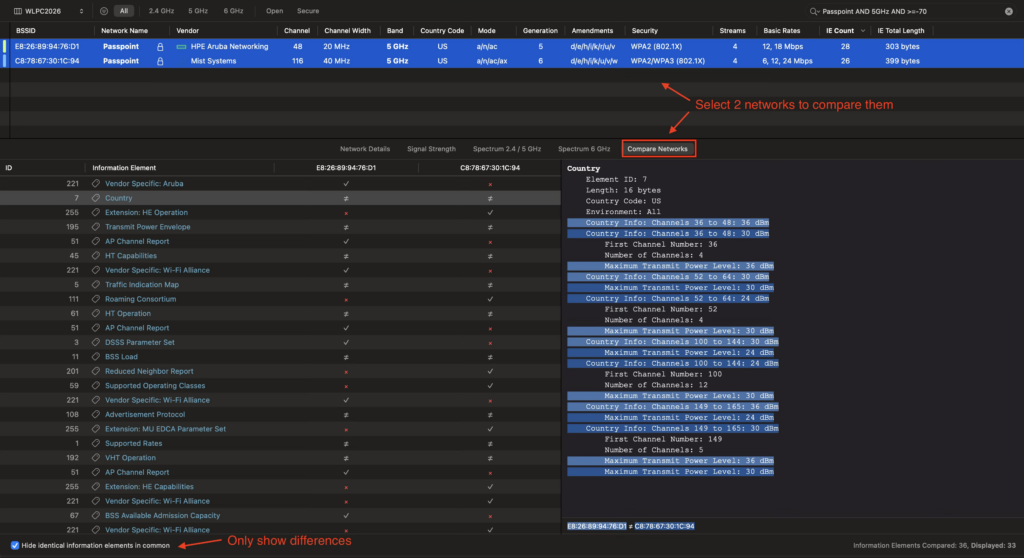
While we were at the Psychology building and both the Aruba and Mist APs were online in the same environment, I was able to capture the SSIDs broadcasted using the WiFi Explorer Pro 3 (WFE Pro 3) WLAN analyzer app from Intuitibits. This app has a great “Compare Networks” feature that doesn’t get enough attention in my opinion. With 2 SSIDs selected, you can see the similarities and differences, or just the differences between them.

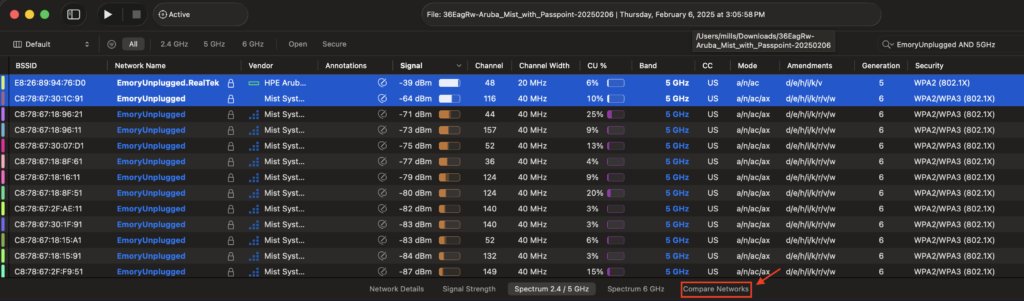
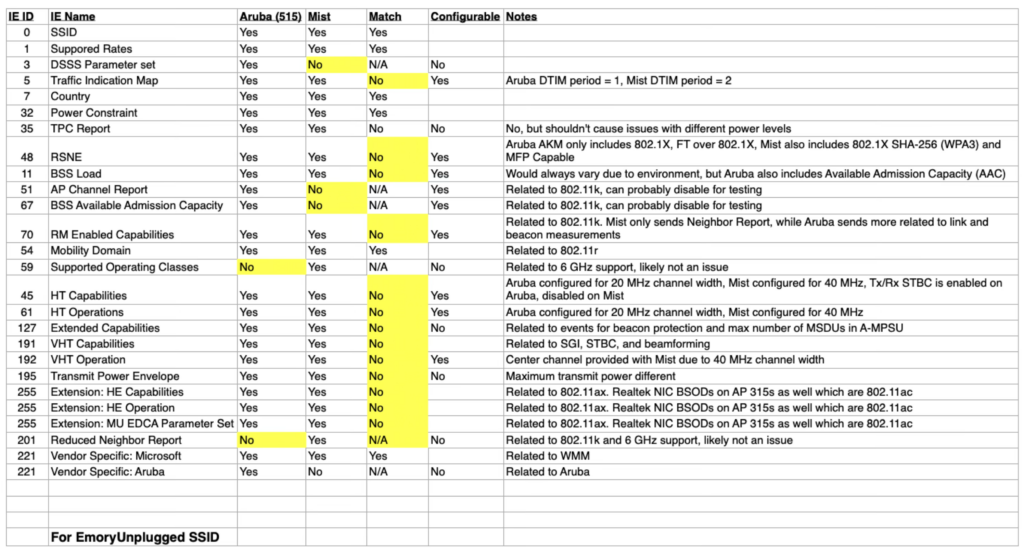
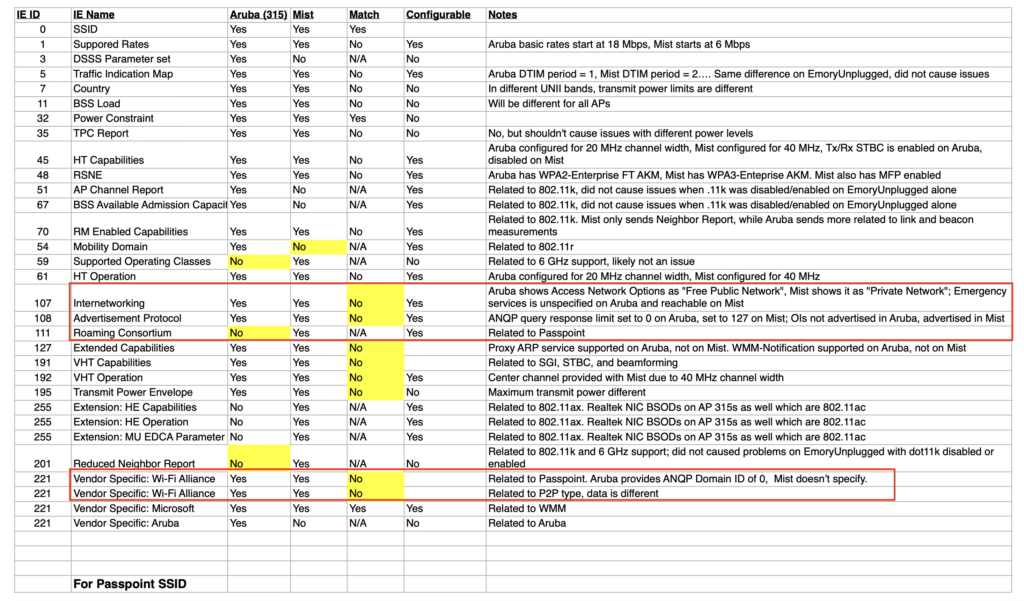
I’m a very visual person so I used this ability in WFE Pro 3 to create these two spreadsheets to highlight the differences in the the two suspected SSIDs. This allowed me to hone in on not only the differences, but the things I felt could actually be the cause of this problem. As you can see, while there were several differences for both SSIDs, there were a lot of differences specifically with relation to Passpoint or HS 2.0.
Wireshark, a WLAN Pi, and Python
Without the ability to add/remove certain specific information elements (IEs) in the Aruba config, how could we test the differences in IEs by adding or removing them one at a time? Well, while in Phoenix at WLPC 2025, I remembered that the WLAN Pi project has a tool called Profiler managed primarily by my friend Josh that essentially mimics an AP to aid in capturing a client’s capabilities. The Beacons that are sent out by the WLAN Pi are generated by Python code using the Scapy package. I reached out to Josh about my idea of using Scapy to do the same, but with the Passpoint SSID and he agreed that it would be possible so off I went the weekend after WLPC 2025 to learn more about Scapy and give it a go.
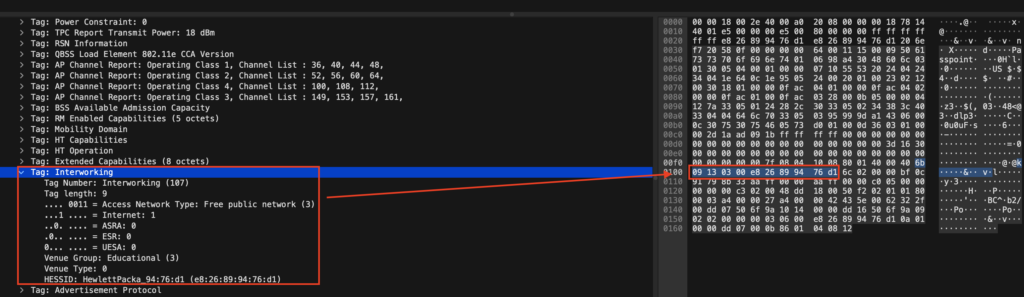
In my opinion, Scapy is fairly easy to learn and the documentation is very helpful. Having Josh’s Profiler code at my disposal to take a peek and ensure I was doing things correctly didn’t hurt either! I’ll spare you with the details since this isn’t meant to show you how to code, but I was able to write Python code that would put my WLAN Pi M4+’s adapter into monitor mode and advertise fake Beacons with just the IEs I wanted to advertise. To do this, I had to leverage Wireshark to get the hex data for the IEs since Scapy seemed to only accept hex encoding for many of the IEs.
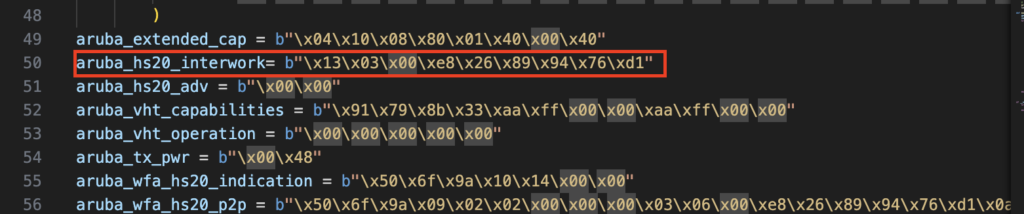
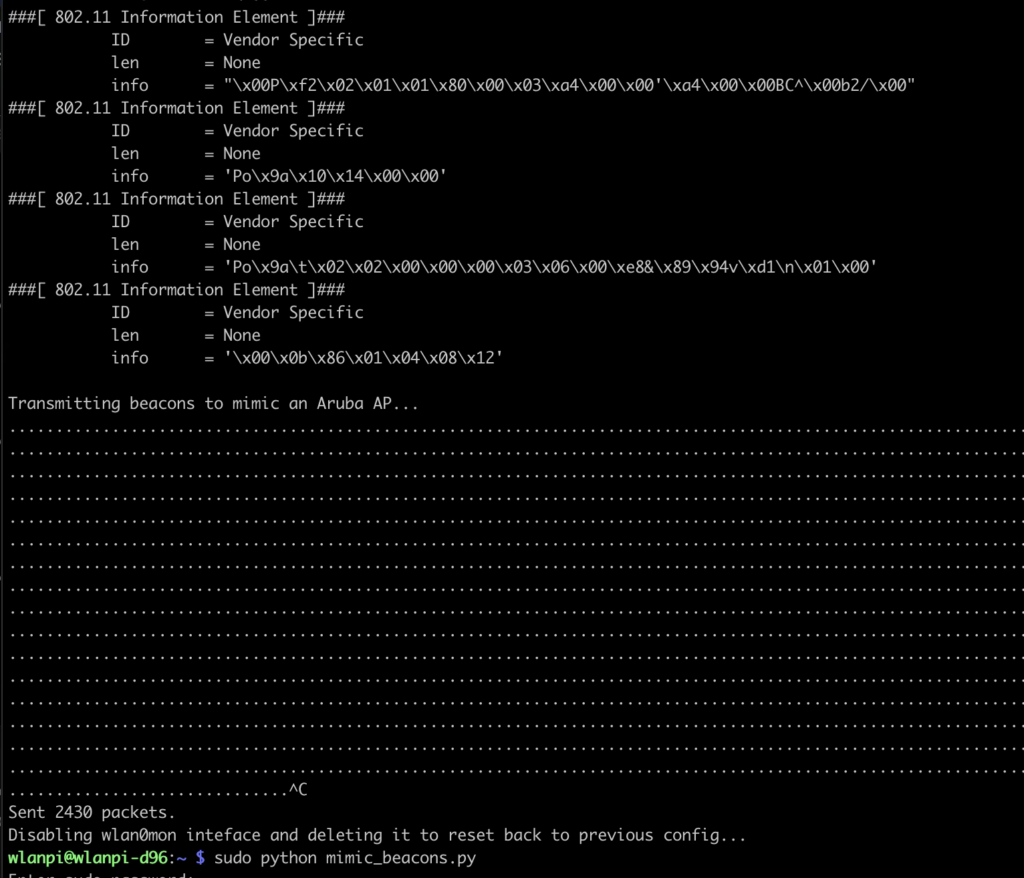
Armed with this ability, we were able to obtain another problematic laptop and brought it to our warehouse where could test on our own schedule and also minimize the chances of impacting innocent bystanders.
The testing results weren’t completely consistent. Meaning that the laptop didn’t always BSOD and reboot when we thought it would, but we were able to completely rule out .11r once again and focus on the IEs related to HS 2.0 (Passpoint).
The root cause
Almost 2 full months later (April 2025), Realtek eventually acknowledged that there was a known issue with their drivers and that they had already provided a fix to the OEMs (January 2025). Although they kept us in the loop on the confirmation of when Dell and HP would make them available to their customers, they never provided us with a root cause. That bothered me, but I had to move on as this was an extremely busy time for us. It wasn’t until this topic was accepted as a talk for WLPC 2026 that I took more time to try and discover what the root cause really was and while I did reach out once again to Realtek to ask if they could just tell me, I never heard back from them. To help me discover the root cause, I once again turned to my Python script along with a test laptop that Josh sent me.
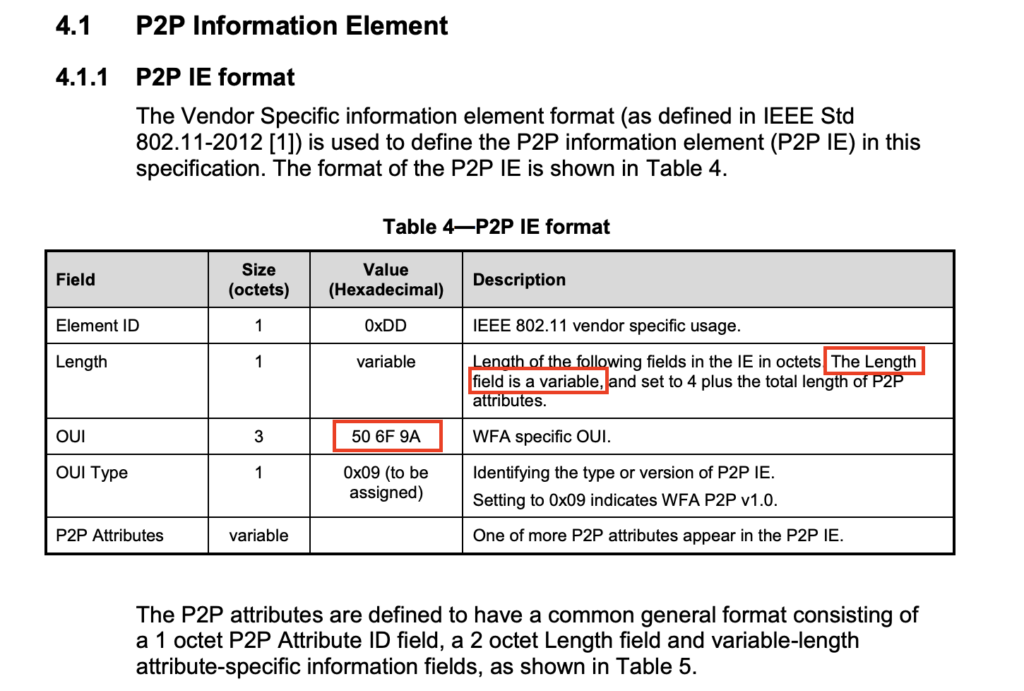
One at a time, I removed the IEs related to Passpoint from the Aruba Beacon until I found the right combination. It was directly related to the P2P (Peer-to-Peer) IE. Once I knew it was the P2P beacon, I didn’t stop there. I wanted to know specifically what it was about the P2P IE that caused this problem. I figured it had something to do with the length of the IE since it was so drastically different (and larger) from the Mist Beacon. So I started at the same length of bytes that the Mist Beacon’s P2P IE had which was 8 bytes and kept increasing it until I found the problem. 10 bytes, nothing. 14 bytes, nothing. 18, 20, 21, nothing… I could not recreate the BSOD until I reached 22 bytes, the exact length of the P2P IE in the Aruba Beacon.
According to the Wi-Fi P2P (or Wi-Fi Direct) technical specification, the P2P IE can be of variable length (up to 250 bytes), due to the amount of P2P attributes it may have…. So this means that for this particular NIC and firmware, Realtek didn’t take into account a larger possible length for this specific IE which essentially caused a buffer overflow
This also proved that the BSOD was directly related to Beacons and not Probe Responses or direct connection attempts because my script was only written to send Beacons.
Conclusion
I know this post was long, but I appreciate you taking the time to read through it. This was a great exercise in troubleshooting AND solving a problem from scratch. Not only did I learn that Beacons weren’t always harmless, this situation also allowed me to leverage my experience and knowledge of Wi-Fi in addition to the tools that we as Wi-Fi professionals have at our disposal to help troubleshoot and diagnose problems such as these. I was also able to add another skillset to my tool belt by learning how to use the Scapy Python module to create and broadcast modified Beacons over-the-air which can be extremely useful in a variety of scenarios.
My wish is that none of you ever have to face a scenario like this in the future, but if you do, I hope I’ve provided enough info to arm and prepare you for how to approach resolving it.